
Access your Data |  | by Eddie Mijares |
One of the wonderful features of Microsoft Access is the ability to create a Yes/No field in a table. This makes it easier to categorize data. Yes/No fields can easily and intuitively be displayed on forms using check boxes, option buttons and toggle buttons.
Yes/No fields are actually stored in integer fields. Yes is stored as -1 and No is stored as 0. As you can see, this presents a problem if we would like to count or sum the Yes/No responses. Fortunately, we can work around this problem with some simple ingenuity and Access Basic Code.
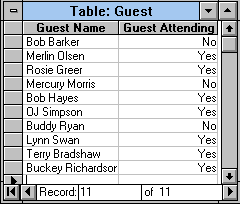
Let's begin with a real world example such as a birthday party. I have created a table named Guest which includes two fields. The first field is Guest Name and is a text data type which is 50 characters long. The second field is Guest Attending and is a Yes/No data type. I have loaded the table with our guest list and the attendance replies.
Now let's build a query to count the number of attendees. Create a new query and add the Guest table. Next select or place the Guest Attending field in the field grid. Now press the Run query button or select Query and Run from the menu. You will see the Yes and No responses of our guest list. Now select the View and Totals from the menu. This will add a Total row to the query grid and it will place "Group By" in this row. Now, change the "Group By" to "Sum". Now press the Run query button or select Query and Run from the menu. We now see that the "SumOfGuest Attending" is -7. This result is both disturbing and perplexing. After some consideration, we see that this is correct. Seven guests have replied they will be attending the party. The sum of seven yes responses is -7 since yes is stored as a -1.
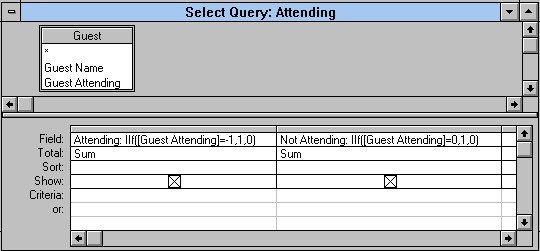
The solution is easy, simply replace the -1 with a 1. Fortunately, the Access Basic IIF function provides this capability. IIF is an immediate IF, it will return one of two values based on whether an expression is true or false. It has 3 arguments or parameters. The 1st argument is the expression to test. The 2nd argument is the value to return if the expression is true. The 3rd argument is the value to return if the expression is false. So to count the Yes responses to Guest Attending, we would return 1 if Guest Attending = -1 and 0 if Guest Attending not = -1. Enter the following in the Field row of the query grid.
IIf([Guest Attending]=-1,1,0)
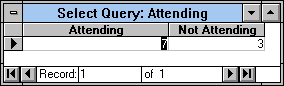
Now press the Run query button or select Query and Run from the menu. The result is 7 attendees have Yes specified in the Guest Attending field. Only one problem remains, the query has assigned a name of Expr1 to our calculated field. If we enter the following a more meaningful result will occur.
Attending: IIf([Guest Attending]=-1,1,0)
We can also determine the number of guests who cannot attend by entering the following in the second field of the query grid.
Not Attending: IIf([Guest Attending]=0,1,0)
After some experimentation, you should become quite proficient at manipulating Yes/No fields. In addition, this approach works equally well in designing reports.
Eddie Mijares, a HAL-PC member, who is the president of Major Systems Corp., is engaged in MS Access and VB consulting.
This page is best viewed using Netscape ver. 2.0b5 or higher. Designed by Meredith Foster. E-mail me at webmaster@hal-pc.org with any comments you have and tell me what you want to see here.
Back to the User Journal Home Page